
MouseEyes comes with several built‑in profiles that are always available — even before you create any custom profiles. They’re hardcoded into the app, so they can’t be accidentally deleted or corrupted, and they’re designed to quickly demonstrate what MouseEyes can do.

Instantly switch profiles

Right‑click a MouseEyes window and choose Profiles to apply a different profile immediately. Switching updates the active window’s layout and controls on the spot.

Custom profiles

You can create your own, custom profiles for use with MouseEyes!


Default Profiles Included

Below are the built‑in profiles that ship with MouseEyes. These samples show the MouseEyes profiles placed on the Windows 11 Taskbar as they track the mouse on the desktop.

MouseEyes Two Eyes profile preview (animation)

Two Eyes (Default)

Purpose: The standard, classic MouseEyes layout.

A pair of animated eyes positioned side‑by‑side. Each eye independently tracks your mouse pointer across all connected monitors. This is the default layout shown when MouseEyes first launches.

  • Everyday use
  • Maximum cursor visibility
  • New users
  • Symmetrical layout
  • Smooth dual‑eye tracking
  • Balanced pupil movement for accuracy

MouseEyes MouseMap profile preview (animation)

MouseMap

Purpose: Monitor diagnostics and cursor visualization.

Displays a miniature map of all monitors in your system and shows your mouse position in real time. MouseMap can also highlight off‑screen windows with red edges — and gives you quick, interactive recovery tools.

  • 2+ monitors
  • Fast cursor location
  • Window recovery
  • Real‑time monitor layout
  • Real‑time mouse location visualization
  • Highlights off‑screen windows
  • Double‑click a monitor to teleport the mouse cursor
  • Double‑click a red edge to relocate off‑screen windows back into view
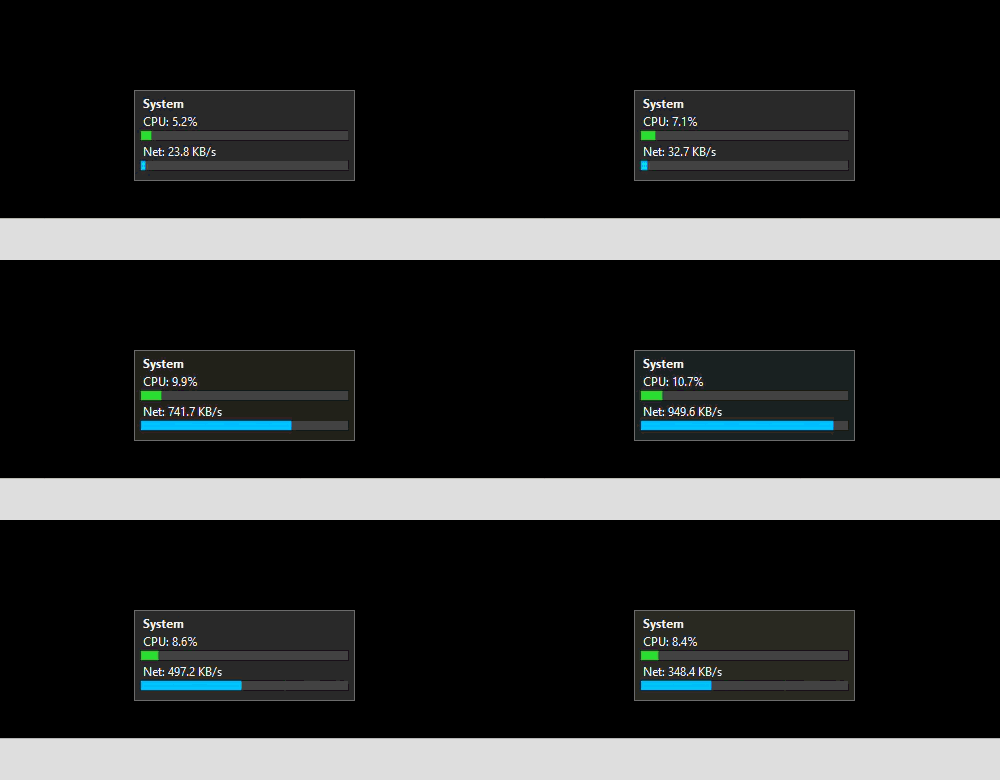
MouseEyes CPU & Network profile preview (animation)

CPU & Network

Purpose: Live system resource gauge (CPU + network throughput).

A real‑time dashboard showing overall CPU utilization (0–100%) and aggregated network throughput (KB/s). It updates on a timer and uses smoothing to reduce flicker for a stable always‑available readout.

  • Quick system monitoring
  • Heavy multitasking
  • Performance checks
  • Live CPU usage percentage
  • Live network throughput (KB/s)
  • Smoothed readings for stability
MouseEyes Pointer profile preview (animation)

Pointer

Purpose: Direction‑to‑cursor tracking without cartoon eyes.

Instead of eyes, this profile shows a pointer control that rotates to indicate the direction of the mouse position. It acts like a visual compass — great when you want directional tracking in a cleaner style.

  • Less whimsical visuals
  • Multi‑monitor cursor jumps
  • Professional environments
  • Rotational tracking rather than eyeball tracking
  • Clean, minimal design
  • Easy to locate at a glance
MouseEyes Single Eye profile preview (animation)

Single Eye

Purpose: Minimal, space‑saving tracking.

A single, animated eye centered on a compact form. You still get the same smooth tracking behavior, but with a smaller on‑screen footprint.

  • Minimalist setups
  • Limited screen space
  • Single focus point
  • Highly visible, oversized pupil
  • Smooth tracking (same algorithm as the two‑eye profile)

Download MouseEyes Need help?